Why Google Won't Index Your Pages (And Exactly How to Fix It)
You published the page. Google still can't find it. Here's what 'crawled, currently not indexed' actually means, what causes it, and the fastest way to diagnose and clear your entire backlog.
By Auralogics Labs · Product Team

You spend hours writing a piece of content. You hit publish, submit the URL to Google, and wait. Two weeks pass. A month. You search for your exact title in quotes and Google returns nothing. The page isn't ranking, it doesn't even exist as far as Google is concerned.
This isn't a ranking problem. It's an indexing problem. And it's far more common than most WordPress site owners realize. The frustrating part? Your SEO plugin is probably telling you everything looks fine.
Why your SEO plugin can't see the real problem
Yoast, Rank Math, and every checklist-style SEO plugin work from your database. They check your title length, count your keywords, verify your meta description exists. They score what you wrote.
But they have no idea what Google thinks. They can't tell you whether Google crawled your page last Tuesday, what verdict it received, or why 14 of your 60 pages have been sitting in a 'not indexed' state for three months. That data lives in Google Search Console, and most tools don't pull it.
The gap most teams miss
On-page SEO scores and actual Google indexing status are completely separate things. A page can score 100/100 in Yoast and still be sitting in Google's 'crawled, not indexed' pile, indefinitely.
What Google's indexing verdicts actually mean
Google Search Console assigns every URL a coverage state. These verdicts tell you what Google decided to do with each page after crawling it. Here are the ones that kill your organic traffic:
- Crawled, currently not indexed: Google visited your page and chose not to include it. Usually a content quality, duplication, or thin-content signal.
- Discovered, currently not indexed: Google knows the URL exists but hasn't crawled it yet. Often means your site doesn't have enough authority or your crawl budget is being wasted elsewhere.
- Duplicate without user-selected canonical: Google found another page it considers more authoritative and folded yours into it.
- Excluded by 'noindex' tag: something in your setup is actively blocking indexing. Sometimes unintentional, plugins, themes, or staging environment settings.
- Redirect error or soft 404: the page technically loads but Google treats it as non-content.
Each verdict is a different root cause with a different fix. 'Crawled, not indexed' on a 180-word category page means you need more content or should consolidate it. The same verdict on a 2,000-word article usually means a duplication or internal-linking problem. You can't fix what you can't see.
How to diagnose your indexing problems systematically
You can manually check individual URLs in Search Console using the URL Inspection Tool. That works fine if you have five pages to investigate. It breaks down completely when you have 80 pages, some of which are indexed, some aren't, and you have no idea what they have in common.
Nexora Pulse's Index Doctor connects to the Search Console URL Inspection API using your own credentials and pulls the real indexing verdict for every page on your site, the same data you'd get clicking through Search Console one URL at a time, except it does it in bulk and cross-references the results with its own analysis.
Finding patterns, not just individual problems
Here's where it gets useful. Instead of showing you a list of failed URLs, the Index Doctor looks for what the rejected pages have in common. If 11 of your 15 not-indexed pages are under 400 words, that's not a coincidence, that's a pattern, and fixing the pattern clears the backlog faster than fixing pages one by one.
It overlays Search Console verdicts with its own signals: word count, internal link count, duplicate similarity scores, and Core Web Vitals. That combination tells you not just what Google decided, but why it probably made that decision.
What this looks like in practice
'Google crawled this page on May 14 and chose not to index it, and 9 of your 13 not-indexed pages share the same characteristic: under 300 words with fewer than 2 internal links pointing to them.' That's a diagnosis you can act on today.
A step-by-step workflow for clearing your indexing backlog
- Step 1: Connect Nexora Pulse to your verified Search Console property. This takes about 3 minutes.
- Step 2: Run a full inspection sweep. Pulse pulls the current verdict for every published page.
- Step 3: Sort by coverage state to see how many pages fall into each problem bucket.
- Step 4: Open the patterns view. Find the single characteristic most rejected pages share.
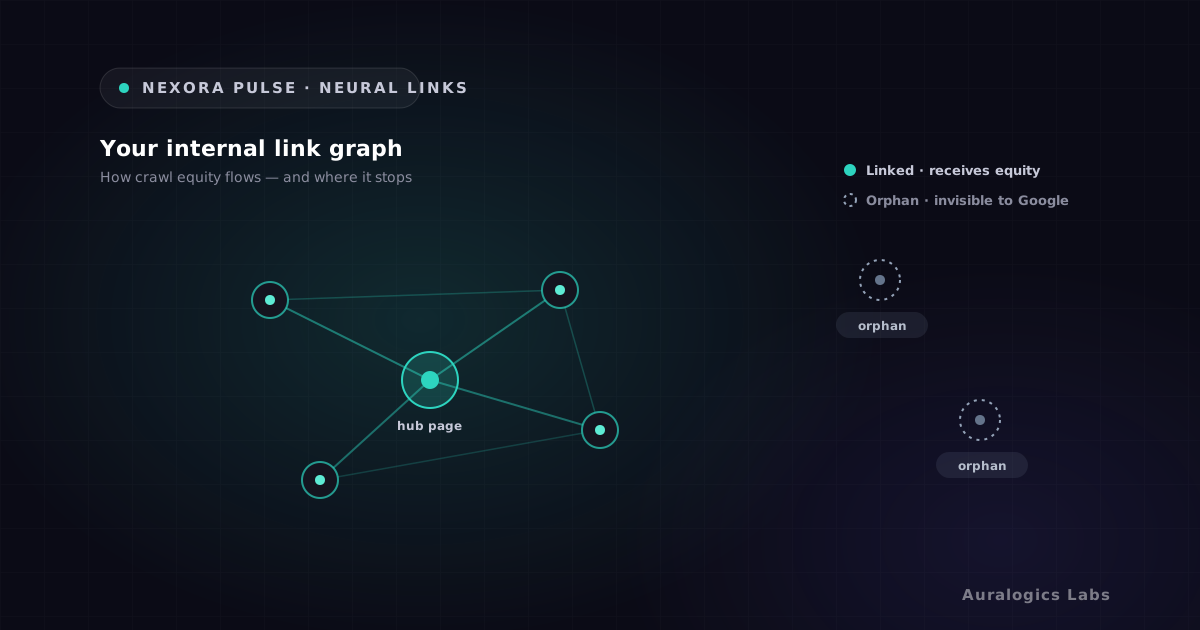
- Step 5: Fix at the pattern level. Expand thin pages, add internal links to orphans, set canonicals on duplicates.
- Step 6: Re-inspect the fixed pages and request re-indexing directly from inside Pulse.
Most teams who go through this process find that 70-80% of their not-indexed pages share one or two root causes. Fix the root cause, and the backlog clears itself over the next few crawl cycles.
Start diagnosing for free
Nexora Pulse is free to install and the Index Doctor is included at no cost. Connect your Search Console account and you'll have real indexing verdicts across your entire site within minutes. If pages are sitting in Google's rejection pile, you'll know exactly which ones and exactly why.
Ready to see these concepts on your stack? Explore Nexora Engine or read the getting-started guide.