The WordPress Image Problem That's Killing Your LCP Score (And How AVIF Fixes It)
You fixed your server response time. TTFB is fast. But LCP is still red. The culprit is almost always the same thing: unoptimized images. Here's why WordPress's default image handling isn't enough, what AVIF actually does, and how to fix it without rebuilding your media library.
By Auralogics Labs · Product Team
Your server response is fast. You've addressed TTFB. But you open PageSpeed Insights and the LCP score is still red, still failing, still the thing holding your Core Web Vitals back. This scenario is more common than most performance guides acknowledge.
The reason is usually images. Specifically, images that are too heavy, in the wrong format, or sized for a desktop screen when most of your visitors are on mobile. WordPress doesn't fix any of this by default. And the performance gap between a site with optimized images and one without is significant enough to affect both rankings and user experience.
Why images control your LCP score
Largest Contentful Paint measures how long it takes for the biggest visible element on the page to finish loading. On most WordPress sites, that element is an image. The hero image, a featured post thumbnail, or a product photo. Whatever it is, it determines your LCP score.
Even on a fast server with a 22ms TTFB, a 400KB hero image on a mobile connection takes over a second to download. That download time goes directly into your LCP measurement. Google considers LCP scores over 2.5 seconds poor. Image weight is usually why sites hit 3 or 4 seconds despite decent hosting.
The TTFB trap
Fixing server response time is necessary but not sufficient. A fast TTFB means the browser starts downloading resources earlier, but if those resources are heavy, the LCP still suffers. Image optimization and server optimization solve different parts of the same problem.
What AVIF actually is (and why it's different from WebP)
WebP has been around since 2010. It delivers roughly 25-35% smaller file sizes than JPEG at comparable quality. For most sites, moving from JPEG to WebP alone produces a meaningful improvement.
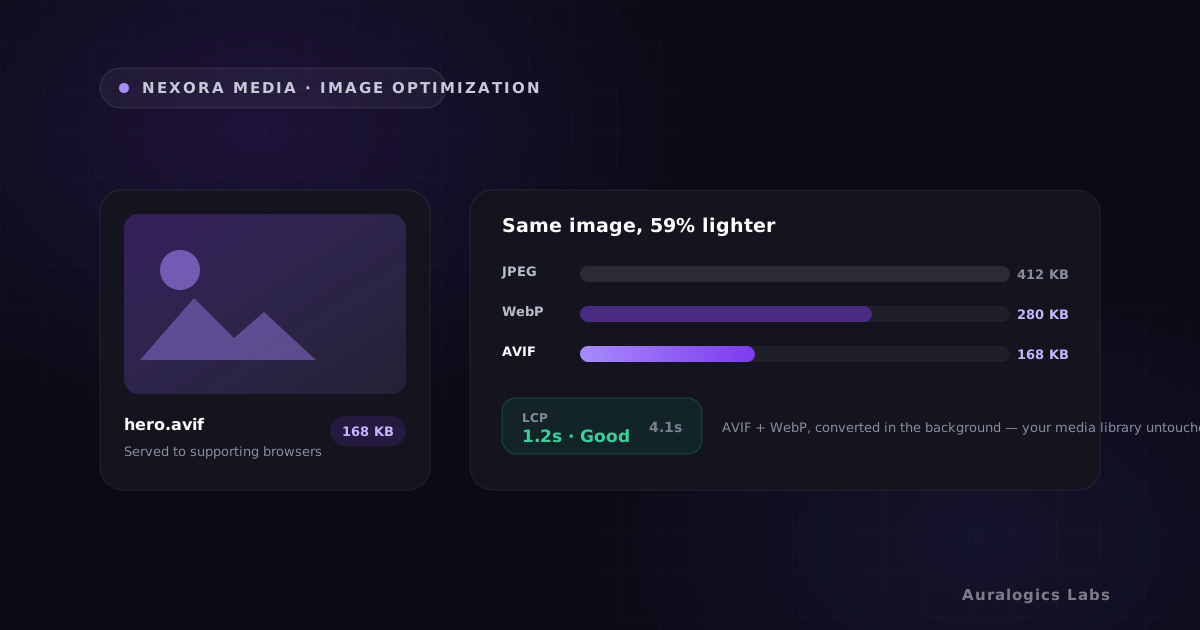
AVIF is newer and encodes more efficiently. At equivalent visual quality, AVIF files are typically 45-55% smaller than JPEG and 20-30% smaller than WebP. On image-heavy pages like WooCommerce product catalogs, that difference compounds quickly across dozens of images.
- JPEG: widely supported, large file sizes, no transparency
- WebP: 25-35% smaller than JPEG, broad browser support, transparent backgrounds work
- AVIF: 45-55% smaller than JPEG, excellent quality at low bitrates, growing browser support (Chrome, Firefox, Safari 16+)
- PNG: lossless quality, large files, use only when transparency requires it
The practical answer for most WordPress sites in 2026: serve AVIF to browsers that support it and fall back to WebP for everything else. Both formats outperform JPEG significantly. Your visitors get the best format their browser can handle.
The WordPress image optimization problem nobody talks about
WordPress generates resized versions of images when you upload them. It creates a thumbnail, a medium size, a large size, and any additional sizes your theme registers. This happens automatically and it works well enough for basic layout purposes.
The problem is what WordPress does not do. It doesn't convert images to modern formats. It doesn't remove metadata from JPEG files. It doesn't generate AVIF variants. And it doesn't match image dimensions to the actual rendered size on different screen widths.
That last point is important. Your theme might display a hero image at 1200px on desktop and 390px on mobile. If you're serving the same 1200px file to mobile visitors, you're downloading three times as many pixels as the screen can even display.
The responsive sizing gap
WordPress generates srcset attributes, but only from the size variants it already created. If it didn't generate the right intermediate sizes for your theme's layout, browsers fall back to the largest available version, even on small screens.
Why the media library is the wrong place to fix this
The obvious approach is to process images before uploading. Run them through a compression tool, convert to WebP, resize for different screens, then upload. This works at small scale and becomes a maintenance nightmare at anything larger.
Every image needs to be processed manually. If your workflow changes or a new breakpoint gets added to the theme, you'd need to reprocess every image in your library. And for sites with hundreds or thousands of existing images, there's no practical way to retroactively apply this without a bulk reprocessing tool.
Background conversion solves this differently. Images are stored in their original format, and conversion to AVIF and WebP happens automatically either at upload time or on first request. The media library stays clean. Your existing workflow stays unchanged.
How Nexora Media handles conversion and delivery
Nexora Media converts images to AVIF and WebP in the background, without modifying your original files. Your uploaded JPEGs and PNGs stay exactly as they are in the media library. The plugin generates optimized variants alongside them and serves the right format to each visitor based on their browser's Accept header.
Responsive variants are generated for the breakpoints your theme actually uses, not just the default WordPress sizes. This means a 390px mobile screen gets an image sized and encoded specifically for 390px, not a scaled-down version of a 1200px file.
- Original files untouched in the media library
- AVIF and WebP variants generated automatically in the background
- Format negotiation via Accept header, no client-side JavaScript required
- Responsive sizing matched to your theme's actual rendered widths
- Existing image URLs unchanged, no template edits required
- Works standalone or paired with Nexora Engine static delivery
What to expect in your Core Web Vitals after optimization
The impact varies depending on how image-heavy your pages are and what format you were serving before. For sites that have been serving unoptimized JPEGs, the payload reduction is typically 50-70% per image.
LCP improvements follow the payload reduction. If your hero image drops from 380KB to 90KB, the download time on a mobile connection drops proportionally. Sites that were failing LCP at 3.2 seconds often pass at 1.8 seconds after optimization, without changing any other part of the stack.
When paired with Nexora Engine's static delivery (22ms TTFB), the combined effect is significant. Fast server response plus lightweight images means the browser receives, parses, and renders the largest contentful element faster than most WordPress sites can even begin responding.
Get started with Nexora Media
Nexora Media installs like a normal WordPress plugin. After activation, it begins processing your existing media library in the background and converts new uploads automatically. Your images start serving in modern formats to visitors immediately. If LCP is the score holding your Core Web Vitals back, image optimization is the most direct path to fixing it.
Ready to see these concepts on your stack? Explore Nexora Engine or read the getting-started guide.